Troubleshooting Slow VDI Sessions
When a virtual desktop feels slow, follow the user path to isolate sign-in, profile, application, network, and capacity issues before changing infrastructure.
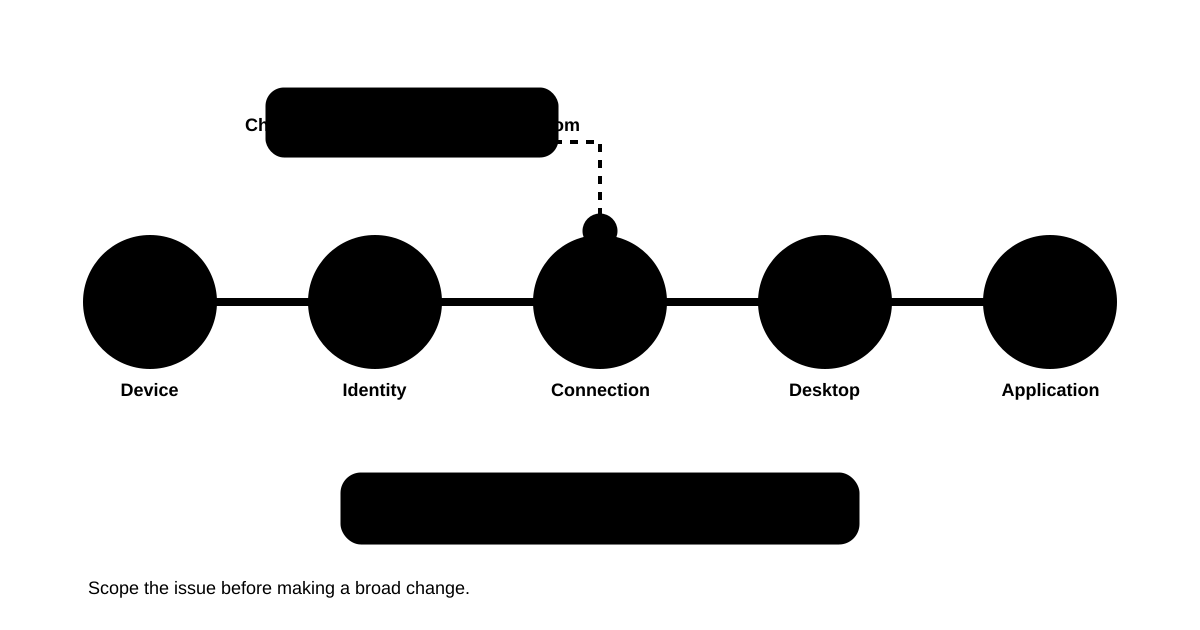
“VDI is slow” is a real report, but not yet a diagnosis. A user may mean sign-in is delayed, one application opens slowly, the screen pauses during a task, or a session disconnects. Each points to a different part of the service path. Reproduce the experience and narrow the scope before adding capacity or changing a broad policy.
Start with the blocked workflow
Ask what the user was doing, what happened, and when it began. Which desktop and application were involved? Did the issue start before the desktop appeared, after sign-in, or only during a particular task? Was there an error or disconnect? Is it happening now, and does the same issue occur from another location or account?
Capture enough context to compare like with like: approximate time, user group, location, device type, application, and whether the issue is ongoing or intermittent. Avoid passwords and unnecessary personal information. If the issue is widespread or affects an important service, follow the organization’s incident process rather than treating it as an isolated ticket.
Write a testable symptom statement. For example, “the scheduling application takes longer to open for users at one location after an image change” is more useful than “VDI is bad today.” Ask the affected user to describe the task in their own terms; a perceived delay in opening a file may involve a different dependency than slow sign-in.
Follow the session path in order
Check the layer that matches the symptom and record the evidence before changing configuration:
Sign-in and access. Confirm authentication completes and the expected desktop and access policies apply. A delay before the desktop appears points to the sign-in path, not automatically to the application.
Profile and desktop readiness. Determine whether the profile loads and the desktop reaches a usable state. Compare the affected account with a similar known-good session. Recent profile, policy, or image changes may matter, but do not presume storage or host capacity is responsible.
Application behavior. Test the specific application workflow. Determine whether the delay occurs for all users or one group, at launch or during data access, and whether licensing, dependencies, updates, or recent changes are relevant. Avoid changing a shared image before establishing that it is the right layer.
Network and session path. Compare locations and access routes. Review evidence of latency, loss, or gateway problems during the reported window. A network issue can resemble a busy host even when compute resources are available.
Shared resource conditions. Inspect host, storage, and pool conditions during the event, not only the current snapshot. Look for a pattern aligned with the symptom, such as a peak period or shared bottleneck. A capacity change should follow evidence, not a vague single report.
Compare safely before changing
Use a controlled comparison: the same user from another location, another user using the same application, or the same workflow before and after a recent change. Change one variable at a time where practical. If several policies or resources change together, improvement may be real but the cause will remain unclear.
Before a broad adjustment, consider who else could be affected. More resources may help a shared bottleneck but will not fix an individual profile delay or an application issue. A new image may resolve compatibility for one group while creating problems elsewhere. Use a limited pilot and a rollback path when the scope warrants it, and coordinate with the owner of a shared dependency.
Avoid repeatedly asking users to retry without sharing what is being investigated. Tell them what is known, what remains uncertain, and when they should provide another observation. If multiple teams are involved, name the current owner and next update so the user does not have to restart the report with every handoff.
Verify the original task and close the loop
After a change, ask the affected user to repeat the task that exposed the problem under comparable conditions. Confirm the desktop is usable and the relevant application action works. A completed configuration change is not proof that the symptom is resolved. If the issue persists, continue diagnosis or explain the remaining uncertainty and next check rather than closing the ticket as fixed.
Keep one concise diagnostic record containing the reported task, scope, time and access path, layer investigated, evidence, approved change, and observed result. For an intermittent problem, state conditions that may help reproduce it and who will follow up. Avoid storing screen contents or unrelated personal information. If the cause is confirmed, add an appropriately sanitized note to the team knowledge base so another responder can reuse the learning without treating it as a universal rule.
Use patterns to improve future response
Across incidents, compare recurring symptoms with the changes or service conditions associated with them. A pattern across users sharing an application suggests checking its path and dependencies; a pattern across locations at sign-in suggests examining a common identity or connection service. A single affected user calls for comparing that person’s profile, device, permissions, and session conditions before changing shared infrastructure. These are investigation leads, not conclusions: validate each with evidence from the affected period.
Operational data should be appropriate to the environment and protected according to organizational practices. A short record of task, time, location, and layer is often more useful than a dashboard full of unrelated measurements. Track whether an issue returns after a fix and whether a proposed change introduced a new symptom; this helps distinguish a durable correction from a temporary improvement.
Keep the diagnostic note proportional: enough context for a colleague to reproduce the check, but not a dump of every metric or user detail. Record timestamps with the relevant time zone where teams span locations. That small discipline helps compare logs from different systems and prevents responders from treating observations collected at different times as if they describe the same event.
VDI performance is an end-to-end experience shaped by access, profiles, applications, networks, shared resources, and user workflows. Logical Front brings experience across more than 1M VDI deployments; each environment differs, so there is no one-size-fits-all threshold. For additional operational background, see this remote desktop troubleshooting overview. To discuss a VDI environment with Logical Front, use its contact page.
Virtual desktop infrastructure
VDI experience for environments that depend on it
Logical Front has delivered more than 1M VDI deployments and continues to manage virtual desktop environments, including Citrix deployments. VDI remains an important option when workflow, security, application, and endpoint requirements make it the right fit.
Plan or improve a virtual desktop environment
Review user workloads, application requirements, endpoint constraints, and operating needs with Logical Front.
Schedule a VDI Consultation